Tasks#
A task is a Jupyter notebook containing related questions, organized hierarchically.
Overview#
Tasks consist of a single Jupyter notebook and two directories for images and data files.
SampleTask
├── SampleTask.ipynb
├── data
│   ├── file1.txt
│   └── file2.txt
└── img
    ├── img1.png
    └── img2.png
Creating a Task#
To create a new task navigate to the authoring tab in the tree view and head over to tasks. You can copy an existing task or create a new one.
To create a new task, specify a name for the task and click Add Task. You will see a Jupyter notebook together with the authoring toolbar.
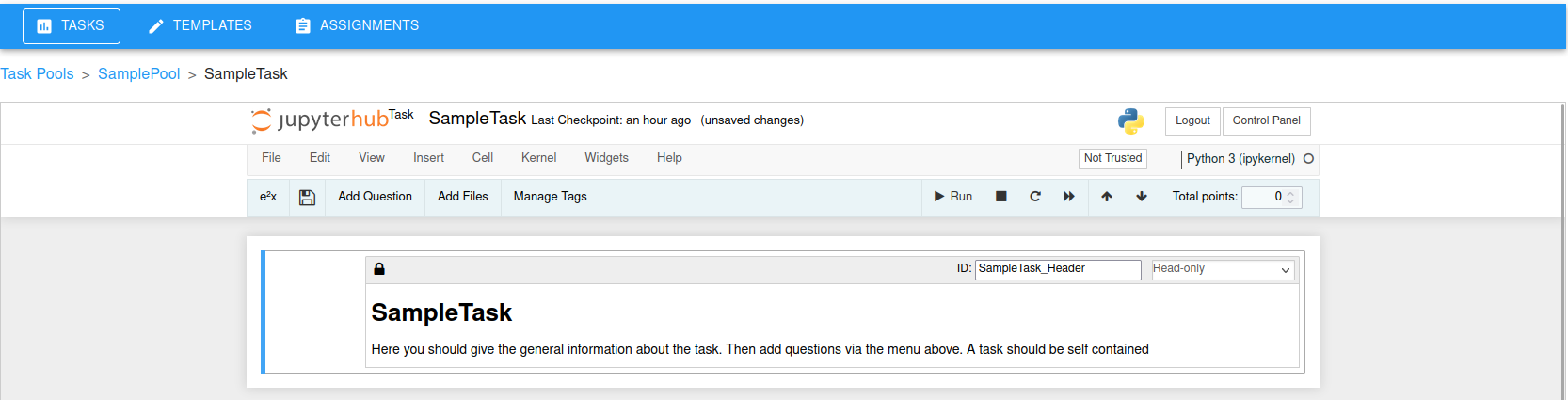
A new task#
A task is initialized with a single Read-only cell that is used provide information that is relevant to all questions. In case your task consists of a single question, you can delete this cell.
Adding Questions#
You can add questions via the toolbar. Here you can choose between different presets such as Code (Autograded), Freetext, Diagram, etc. More information on the available question types can be found in the Question Presets section.

Adding questions via the authoring toolbar#
Adding Files or Images#
In case you want to add images or data files, select the toolbar entry Add Files and upload the files to the specific folder. When a Jupyter notebook is created from multiple tasks, e2xauthoring will take care of naming the files and removing duplicates.

Adding files via the authoring toolbar#